On May 11, 2023 AlphaPlus hosted our eighth Community Gabfest.
The conversation starter was “What is your favourite blended learning resource? And why?”
We received a suggestion that the Gabfest may be a good place to share ideas for good resources, strategies and tools for blended learning— the kitchen-tested stuff that practitioners find useful and effective in a variety of settings.
We used a Jamboard to guide our conversation: Wayfinders Gabfest 8 Jamboard.
We started by brainstorming what we are looking for in resource recommendations – what elements are important to us.
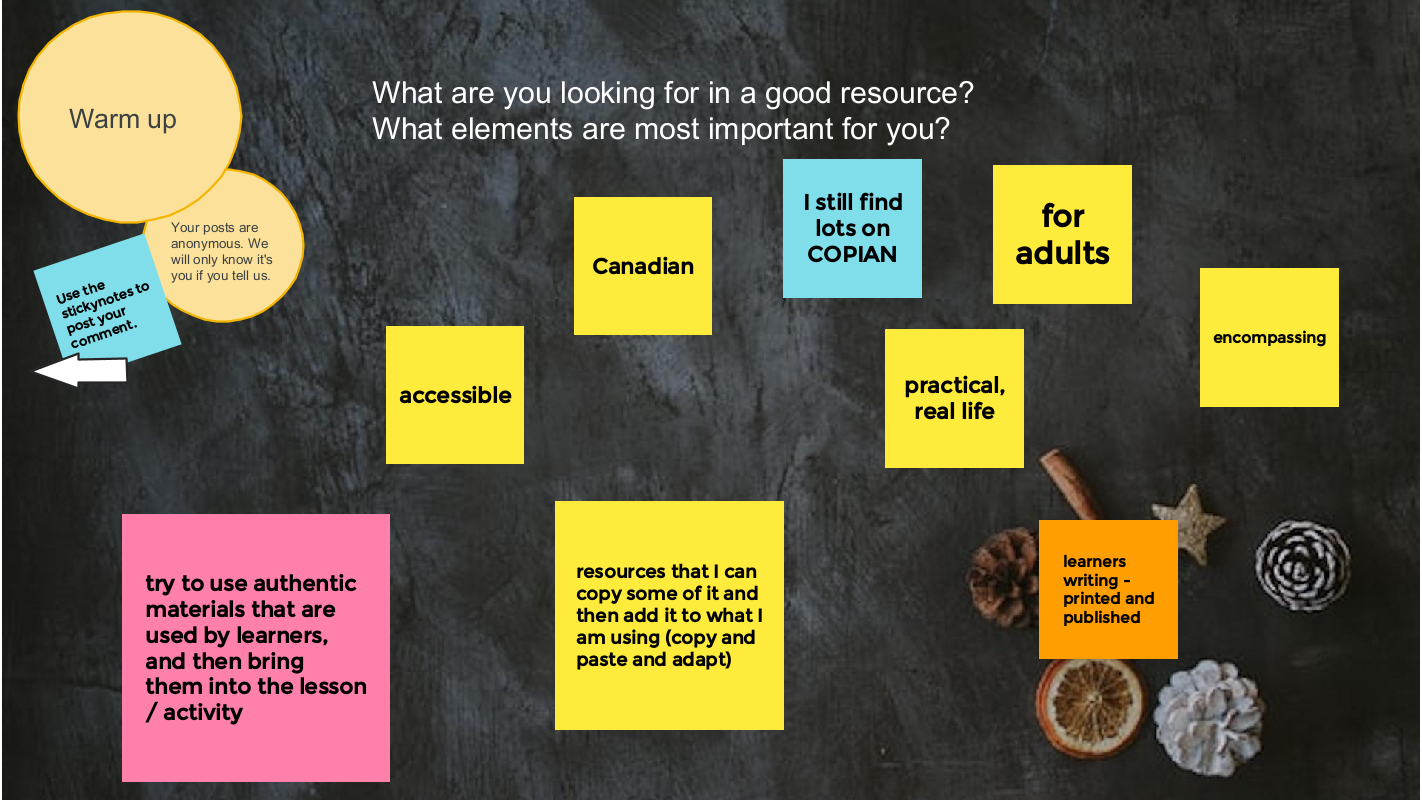
We asked three questions:
- What are your favourite blended learning (integrated digital and literacy skills) resources?
- What are your favourite digital skills (teaching people digital skills explicitly) resources?
- What are your favourite digital literacy (learning about ethics, privacy and safety) resources?
And here is the list we came up with:
Blended learning
- Copian is the newer name of what used to be called note the National Adult Literacy Database. There was funding in the 90s and into the 2000s for a national database of all the adult literacy resources from across the country. It is now taken care of by CDEACF (Centre de documentation sur l’éducation des adultes et la condition féminine).
- I was working with people who were considering going into the trades. I was using ABC Life Literacy’s UP Skills for Work. They had a section on confidence, but it seemed a little thin. So I went into Copian — there’s lots of writing by learners on Copian — and I found stories by learners, mostly from Atlantic Canada in the 2000s, talking about how they noticed their confidence had changed. We’re incorporating those stories into the activity. It is authentic material by people in adult learning environments. I find that finding learner writing is one of the most powerful ways, no matter what the topic is, to help people to reading or writing or even using it for digital skills.
- Free English News Lessons in 7 Levels – You can read or listen to the news and do activities at the level that works best for you. There is advertising on this site. It is mostly at the top of the page.
Citizen Literacy app (useful for learning disabilities/difficulties, uses a phonetic approach, can use the app on an Android or you can access the lessons on the website)
- I’ve started using this with a learner who’s been in our classes over the years but continues to struggle. She might have an undiagnosed learning disability. It’s fun and uses a phonetic approach, but not in a traditional way.
- The Citizen Literacy Learner web app* is free to use, does not require user registration, has no adverts, no in-app purchases and takes no personal information. Featuring a voice driven interface suitable for low literacy learners with two virtual teachers that provide instruction and instant personalised feedback. It keeps track of each learner’s progress anonymously to provide feedback. Importantly, the design avoids looking like a children’s learning resource – a strongly demotivating factor for older learners. There is multimedia interactivity and gameplay, together with voice and handwriting recognition. Enabling some of the first online independent learning opportunities for low literacy learners. From a standing start, by the end of lesson 2, learners are beginning to read and write simple sentences.
- This is a good tool to change up your intake screening passages for reading. It finds new leveled articles and can discourage dishonesty and sharing of reading passages.
- Google Applied Digital Skills is a free online curriculum created by Google that combines real life skills with Google tools in self-paced, video-based lessons that are perfect for independent, hybrid or remote learning. From creating stories and recipes to researching and developing a topic or managing a budget, the curriculum engages learners in problem solving, critical thinking, and hands-on opportunities to develop skills and knowledge. Applied Digital Skills lessons are similar to real world projects and tasks that learners may encounter at work, in their daily lives and in educational settings .
Teach Online from Contact North
- TeachOnline is a place to find resources about the latest trends, best practices, training opportunities, and teaching resources in online and distance learning under the following categories:
- Pockets of Innovation
- Tools and Trends
- Training and Resources
- Upcoming Conferences
- Webinar Series
Linkedin Learning and Gale Learning
- LinkedIn Learning and Gale are online learning providers. LinkedIn Learning provides video courses taught by industry experts in software, creative, and business skills. Gale eLearning solutions provide teachers, students, and adult learners with online learning resources that include 3D virtual learning; elementary, middle, and high school databases; career training; professional development opportunities; and interactive, industry-specific courses taught by world-class instructors.
- You can access these courses and resources for free in some public libraries.
Virtual reality (e.g. Body swaps – Soft Skills simulations): through Contact North centres, literacy programs can use these tools at no cost
- We have a forklift simulator training and hazardous response. We have access to a program called Body Swaps, which is soft skills, so interviewing, preparation, public speaking, dealing with biases. It puts the person in a virtual reality. at first they are answering questions, but then it flips it and you’re hearing your own response and seeing what your avatar is doing. We’re currently working to look to see what we can find to be able to integrate VR more with LBS providers. We have a centre in Toronto and if you are in our centres using our equipment, there is no cost. We are looking to be able to do some more partnerships with community organizations and things like that.
Maps apps (various ways to use them)
- A learner that is in a senior’s program asked about it. We created a lesson about all the different starting points: for example, if someone sends a text with the address, you can tap on the address in the text. and it will open the maps app. I think the literacy part was helping learners understand that with digital devices there’s always more than one way to do the same thing–even though it’s a skills piece, I think the literacy part was thinking of it like a building with many doors and that you can go in in different ways to get the same information. I thought it was kind of interesting. I didn’t plan it. It just kind of happened in class.
Music streaming apps (Lyrics for reading, pronunciation and poetic writing)
- Music is such an easy and less intimidating way for people to engage in learning. It gets away from that grammatical imposition of schooling to learn how to write. You can you can pull up the lyrics on any song you know on apps like Apple Music or Spotify. You can play with a song, look at the lyrics and then try to write one verse of a song without worrying about sentence structure–you can get your words down and then move from there to writing a sentence to writing a short paragraph. Or you can create a poem about something and then create an opinion paragraph about why you think a certain way about the topic. You can do this online, digitally, or it can be in person, paper and pencil.
Podcasts (transcripts for vocabulary development, digital skills, reading skills)
- It is learner driven by the topics they are interested in. You can get the podcast on your phone, but by going to the websites you can get more information and some have transcripts of episodes that are good for vocabulary and pronunciation practice.
Digital skills
- This is a program by the Goodwill Community Foundation and Goodwill Industries of Eastern North Carolina. Everything at GCFLearnFree.org is free. There are 125 tutorials on a variety of topics. Most topics are about using digital technology. It is easy to get lost on this site – in a good way – by following links at the end of each tutorial.
- If learners prefer to learn using a tablet, Kindle or smartphone, there are apps available at https://www.gcflearnfree.org/mobileapps.
- There are teaching guides. Here is the technology one: https://www.gcflearnfree.org/gcfteacherguides/technology/1/ . The technology guide includes “eight learning plans you can follow and adapt for instruction in a classroom, with a small group, or with individuals.”
- Some of the tutorial sections are text heavy and some literacy learners may find it challenging to access the information. Some have a video as well as text and some are mostly video.
Fair chance learning (Achievia – Microsoft apps training)
- This is a a government funded program that provides certificates in Microsoft Excel, Word, PowerPoint and QuickBooks.
- I like North Star for assessments. Northstar Digital Literacy tests your computer skills. You can build skills in key areas, and demonstrate your knowledge by earning certificates and badges. Northstar is a program of Literacy Minnesota. You can do free assessments. Under the Build Your Skills there are some free learning modules for Basic Computer Skills; Email; and Microsoft Word.
- Activities from the following list of Digital Skills sites (and more) are also accessible through the Digital Skills Library where they have been indexed and are searchable.
Media literacy
- On this site you can see a film about how the achievements of women in sports go unrecognized in best-of-lists and elsewhere and then submit your own corrections. The project began with a girl searching the internet looking for the greatest sportswomen in the world. Her searches revealed many of the greatest male athletes in the world and all of their achievements, but very few women. She was then shocked to discover that when she did search for the achievements of the greatest sportswomen, many of them were superior to the men she was being served in her search results. It turns out, Christine Sinclair has scored more goals in international football than Cristiano Ronaldo. The Black Ferns have won more Rugby World Cups than the All Blacks. And the USA Women’s Basketball Team has won more than double the world cup titles of any men’s team. The facts say that many of the world’s greatest athletes are women, but the internet keeps saying they are men. The reason for this is simple – the algorithms our search engines use are trained on our human behaviour. And now, the internet has learnt our human bias towards men. It’s a problem we created, but one we have the power to fix.
- Whenever you use the Internet, you leave a record of the websites you visit, along with each and every thing you click. To track this information, many websites save a small piece of data—known as a cookie—to your web browser. In addition to cookies, many websites can use your user accounts to track browsing activity. While this type of browser tracking doesn’t pose a serious risk to your online security, it’s important to understand how your online data is tracked and used.
Informable app from the News Literacy Project
- Test your news literacy know-how with Informable from the News Literacy Project – newslit.org/newslit-nation. You can try out three levels of difficulty in four distinct modes:
- Is it and ad or not?
- Is it news or opinion?
- Is this image evidence of the claim being made or not?
- Is the information checkable or not?
- The app is available for Android and iPhones and you can play as a guest.
CBC Gem Video – You are Soaking in It
- I asked learners to watch and answer questions about “pressure to purchase’ and ‘context marketing’
The video is no longer available on Gem. I cannot find it online anywhere so far. Here is the documentary webpage and press kit.
More recommended resource lists:
- The Educator Network Blended Learning Toolbox
- Curated lists
- Useful apps
- The Open Education Resource Library
- Curation strategies: Curating Resources in Adult Literacy
Thank you Gabfesters for your energy, generosity, wisdom and friendship. With your help, we won’t fall off the learning curve.
We hear about the challenge of embedding digital skills in literacy learning when working with learners who have beginner literacy skills or digital skills that do not meet the requirements of an educational setting.
Visit our Computer Basics Google site to see a collection of resources you can use to to support learners who are trying to “catch up” on digital skills.
You will find a collection of places that support learners with beginner literacy skills who want to learn more about using digital devices and leveraging connectivity for learning.
There are Lessons and Tutorials that you can use as a curriculum, build into your own curriculum or supplement a curriculum you are using as well as Lessons and Tutorials created by Ontario Literacy and Basic Skills programs.
Under the Standards tab we have collected resources to help literacy learners reflect upon and assess their computer skills.
Lots of people know about and use GCFGlobal (GCFLearnFree – edu.gcfglobal.org) resources as a place to send learners and to learn about techy stuff themselves.
Here are some other sites for getting started reviewed on this site:
- Text-based resources
You can read more about these places to learn at the AlphaPlus Computer Basics site under the Lessons and Tutorials tab.
You will find activities from these sites organized by topic at the AlphaPlus Digital Technology Readiness site Table of Contents where you will find some basics (parts of a computer, the mouse and the keyboard, etc.) under Getting Started. The rest of the topics are to help learners get ready for using digital technology for learning.
Activities from these sites are also accessible through the Digital Skills Library where they have been indexed and are searchable.
Have you heard about AI text generator in Canva? Simply start a Doc in Canva and use + symbol to select Magic Write.
Click the link below to see the Instagram video – you do not need an account or be logged in.
A Blended Learning Toolbox by and for Ontario literacy educators
As part of the Educator Network Blended Learning program, literacy practitioners share the resources that are most helpful in creating lessons and activities that engage learners and enhance and expand learning.
This is the collection from the Winter 2022 group.
These are the blended learning resources, activities and tools that practitioners have tested and are recommending. On some pages you will see their reviews or tips.
We start with an explanation of some of the terms we used and a link to a website about curating resources.
We have included an index. Some topics have several pages. If you open the PDF in a browser, you can use the back button to return to the index.
Use the link in the sidebar to open and download the collection.
“We are essentially social beings. We live in societies, of course; but more fundamentally perhaps, it is our participation in social communities and cultural practices that provides the very materials out of which we construct who we are, give meaning to what we do, and understand what we know.”
— Etienne Wenger, Communities of practice: where learning happens, Benchmark Magazine, Fall Issue 1991
We created this resource with the Silver Linings Café participants in June 2020. We updated it in October 2022.
The Silver Linings Café was an Metro Toronto Movement for Literacy initiative that AlphaPlus was invited to participate in.
This resource includes ideas from the Silver Linings Café instructors for how to engage learners and build community in video conferences (Zoom) during the pivot to remote learning during the COVID-19 lock down period. We were all getting used to working in this new environment and came together to share ideas, support each other and figure out how to support learners and learning.


Synchronous Learning
Synchronous learning is where learner(s) and facilitators(s) meet in the same place, at the same time, so learning can take place. This can happen in bricks—and-mortar classrooms or online meetings. Synchronous learning may include a whole class, smaller groups or one-to-one instruction.
In synchronous learning, learners usually go through a learning path together, accompanied by a facilitator who can provide support while learners are completing tasks and activities.
Examples of synchronous learning tools:
- Phone, Zoom, Google Meet, Microsoft Teams…

Asynchronous Learning
Asynchronous learning is a teaching method where learners use their agency and autonomy differently and is widely used in online learning. Its basic premise is that learning can occur in different times and spaces particular to each learner.
In asynchronous learning, facilitators usually set up a learning path which students engage with at their own pace.
Examples of synchronous learning tools:
Email, What’s App, Google Drive, Google Sites, Learning Management Systems such as Canvas, BrightSpace or Moodle…
Reference: Asynchronous vs. Synchronous Learning: A Quick Overview by Maria Ocando Finol
What are some ways to empower learners with choice?
We can make sure learners have agency over the elements of learning such as
- pace (flexibility over the flow of learning)
- path (learners make decisions about how to learn or how to demonstrate learning)
- place (blended learning opens up possibilities for learning in a variety of settings and at times convenient for learners)
Choice Boards are a type of hyperdoc where activities are organized in a grid, often like a tic-tac-toe board or a bingo board. Learners make choices about what activities they do and mark them on the grid as they finish. Unlike a proper hyperdoc, choice boards do not necessarily tale a learner through a complete learning cycle.
Using hyperdocs is also part of a blended learning approach. Here is more about hyperdocs:
Here is more about Choice Boards from Ditch That Textbook:
Some samples that Educator Network participants found:
- 7 Choice Board samples for remote learning
- Digital Media Design Student Choice Board
- Reading Choice Board: Story Elements (PDF)
And here is a collection of Choice Board templates from SlidesMania shared with us by Lindy Hockenbary from EDTech Teacher:
If you’d like to learn more about Choice Boards, contact Tracey.
P.S. Here is an amazing collaboration non-hyperdoc choice board I saw from @modernclassproj on Twitter.
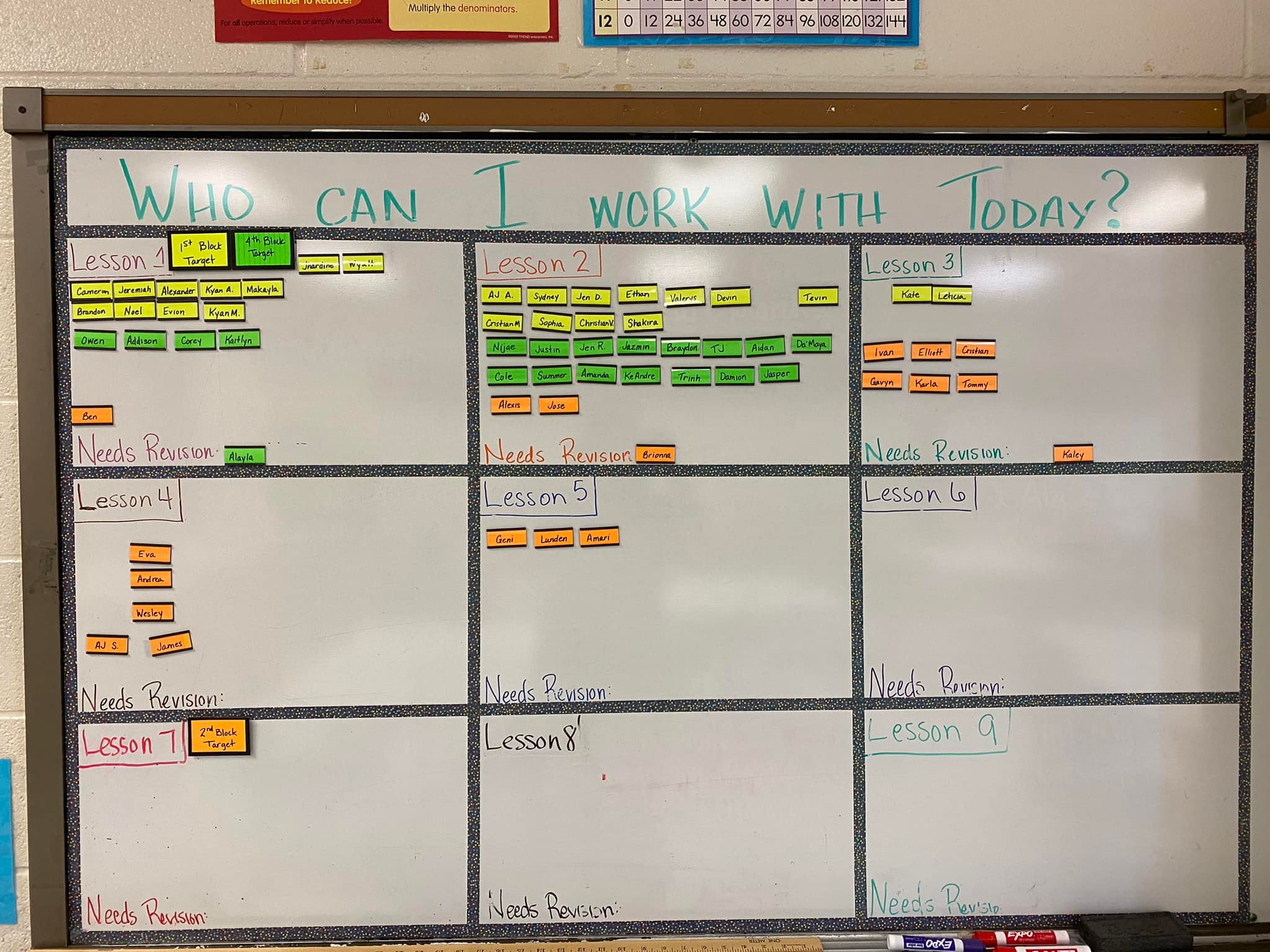
Collaboration and self-pacing? Totally possible in a Modern Classroom! Kim Myers Manning shared with our Facebook group how she sets up her whiteboard to facilitate both.
Canvas is a robust learning management system you can use for free.
Often called an LMS for short, a learning management system is an online platform that provides the framework and tools to handle all aspects of the learning process – it’s where you house, deliver, and track your training content.
An LMS is designed to make life easier for curriculum designers, instructors and learners. An LMS can streamline the process of identifying and assessing learning goals, keeping track of progress and collecting and presenting data for evaluating learning and how the learning environment is supporting learners.
If you’d like to learn more about Canvas or schedule a demonstration, contact Tracey or our Quick Tech Help service.
Google has announced that it is “winding down” Jamboard. If you are using Jamboard you probably got the announcement. If you haven’t started using it, you might want to think about an alternative. If you are using it now, you can keep doing that until December 31, 2024. See more below.
The good news is that there is a way of using Google Slides to do some of the things that literacy practitioners are doing in Jamboard.
Jamboard
Jamboard is a whiteboard that has an online version that you can use for free. Users can add text, sticky notes, images, and links. You can create online discussions and opportunities for synchronous or asynchronous collaborative or individual learning.
In the Sample Jamboards folder you can see activities by some Ontario literacy practitioners (and me) that you can copy and adapt.
You will also see a folder called EDTechTeacher Samples where you will find copies of many of the Jamboards that were shared in the shared in the Building digital skills with Google workshop.
If you’d like to learn more about Jamboard or schedule a demonstration, contact Tracey or our Quick Tech Help service.
“Starting October 1, 2024, you’ll no longer be able to create new or edit existing Jams on any platform, including the web, iOS, and Android. Between October 1, 2024 and December 31, 2024, the app will be placed in “view-only” mode, during which time you can continue to back up your Jam files. Learn more.”
“After December 31, 2024, the Jamboard app will be shut down. You will no longer be able to view your Jams, and all Jam data will be permanently deleted. If there are Jams that you wish to keep, we encourage you to use one of our export or migration options. Learn how to Export your Jams.”
Google is recommending three alternatives. They are all much more complex whiteboards with steeper learning curves and they all require users to log in. They have quite limited free versions. We are looking for an alternative that is as simple to use as Jamboard that are open-source and free or low cost. In the meantime, you might try Padlet.
The alternative I like best so far so far is whiteboard.chat. You can make frames as you can in Jamboard so that different learners of groups of learners can work on activities. It can be integrated with Google Classroom or Microsoft Teams. It does not require users to create accounts. It has activities such as math quizzes that you can insert. You can play around for free – you do not even have to make an account to test it out. Unfortunately, the free account is quite limited. We are not ready to recommend it yet but so far, whiteboard.chat looks promising. If you try it out, let us know what you think.
There also are ways of using Slides to do some of the things Jamboard does. Contact Tracey to learn more.
Padlet Boards
Padlet is an online bulletin board. Users can add text, documents, images, videos, and links. Depending on the choices the Padlet creator makes, users can comment on posts and rate, like, grade or vote for posts. It is a mini interactive website where you can create online discussions and opportunities for synchronous or asynchronous collaborative or individual learning.
Samples
Here is a Padlet about how to post to Padlet: padlet.com/traceyehm/padletpost
Here is a Padlet Tracey uses as a workshop warm up: padlet.com/traceyehm/meal (The map in this Padlet is a wallpaper, not the Map option.)
And here is a writing prompt about time capsules: padlet.com/traceyehm/tceNet
If you’d like to learn more about Padlet or schedule a demonstration, contact Tracey or our Quick Tech Help service.
Padlet Sandboxes
NEW from Padlet: Padlet has introduced a digital whiteboard they are calling Sandboxes.
The sandboxes are different from the Padlet Boards. Padlet Sandboxes have similar features to Jamboard* plus extras. The communication tools include voice recordings, drawing, typing, sticky notes, shapes and video uploads.
You can create a slide show and play it like a slide presentation or use it as an activity board.
There is a set of education templates that can help you get started. You can have different groups working on different cards (frames or pages) and prevent them from seeing what others are doing.
Sample
Here is one we made for a workshop in June 2025: Ideas from teachers (It is “frozen” so you cannot add to it but you can remake it).
Integrations
The Sandboxes can be integrated with Google Drive and Classroom.
Accounts and Pricing
Padlet does not require users to create accounts to participate on the Sandboxes.
Padlet allows you to have three active Sandboxes and Boards on a free account. You can store your old work but you can only have three working at one time. They have several tiers of pricing that allow for more Sandboxes and Boards to be active and for different numbers of editors per Sandbox or Board.
Read more about whiteboards here: Whiteboards for teaching and collaborative learning